Connect Wissen to Grok
Connect Wissen once in Grok’s web settings, then use it in your Grok research conversations.
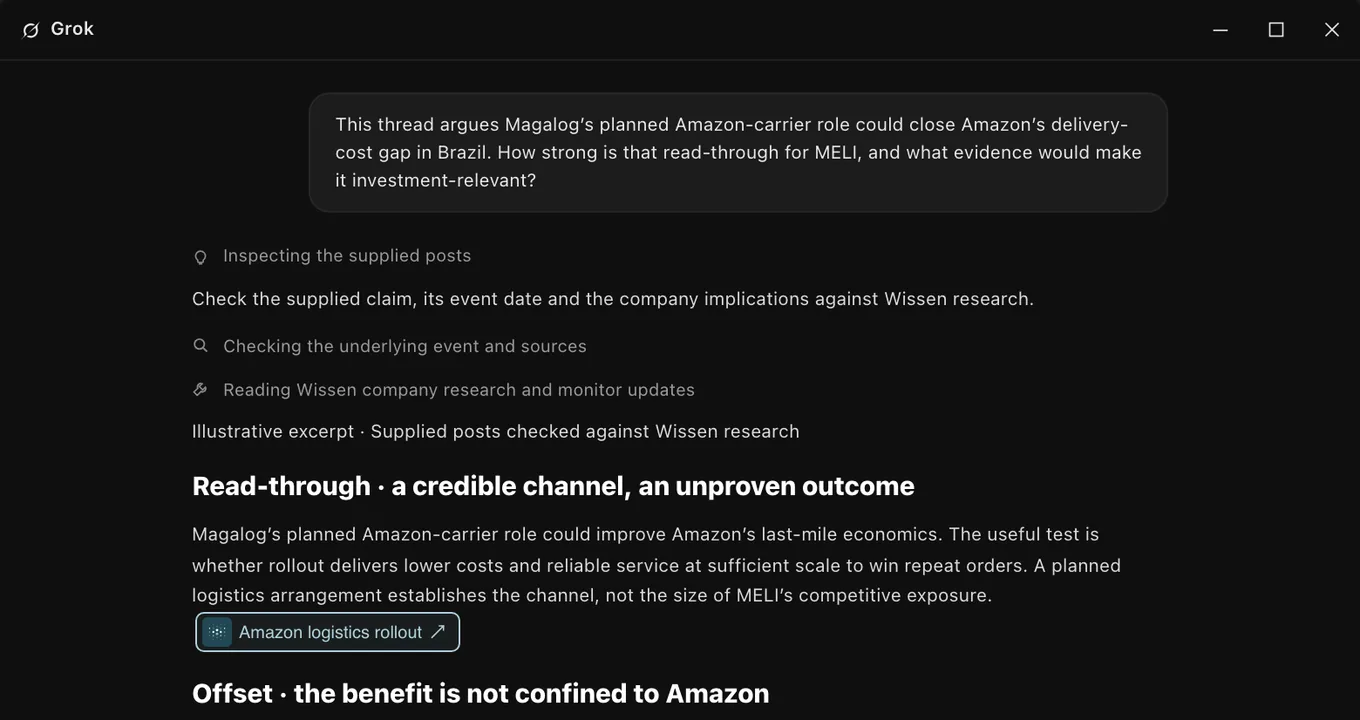
Before you start
- A work email with Wissen accessSign in with it. Adding the connector doesn’t grant research access by itself.
- A Grok accountIn a Business or Enterprise workspace, an admin may need to provision the connector first.
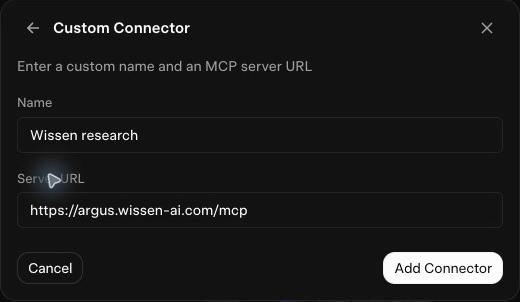
Connect Wissen
Open Grok’s connectors
Grok, then Connectors
Check for an existing Wissen connection before adding another.
Open Grok connectors (opens in a new tab)Sign in to Wissen
Grok opens a sign-in popup. If an authentication selector appears, choose OAuth.
Sign in with the work email your firm has enabled, review the connection request, then return to Grok.
Check it works
In a new conversation, make Wissen available from Grok’s connector controls, then paste:
Connection checkUse the Wissen connector to call fetch_guide with guideId "getting-started" and show the first three workflow steps. Do not list equities or fetch company research. Reply in the chat only; do not edit any workbook, document, presentation, or other record. If the connection fails, report the error instead of guessing.You should see something like this
- Call
list_equitiesto find the companies available to the user. - Choose the research that best matches the question.
- Call the relevant
list_*tool to discover the available research.
A saved server address or an enabled toggle alone isn’t a passing check. Not seeing this? Go to If it doesn’t connect.
- Call
Use Wissen in Grok
Future conversations reuse this connection. You don’t need to add the server again.
- Grok webReadyEnable the saved Wissen connector in a new conversation on the same Grok account.
- Other Grok appsNot yetAvailable once the app supports connectors.
The connection belongs to your Grok account. It doesn’t connect Claude or ChatGPT, so follow their guides if you use them too.
If it doesn’t connect
The sign-in popup did not open›
Allow the sign-in popup for Grok and retry the connection. Keep it open until Grok confirms authentication.
I can connect, but research access is denied›
Check which email you used to sign in to Wissen. If it is correct, ask your firm’s Wissen administrator to check your access. Reinstalling the connector does not add access.
Sign-in does not finish›
Keep the sign-in tab open until the app confirms the connection. If the session expired or you chose the wrong account, reconnect from the provider’s connector settings. Never paste a password, access token, or browser callback URL into a chat.
xAI documentation
For the latest connector controls and availability.