Connect Wissen to ChatGPT
Connect Wissen once on ChatGPT web. Use the same account and workspace to access it in supported ChatGPT apps, including Codex in the desktop app.
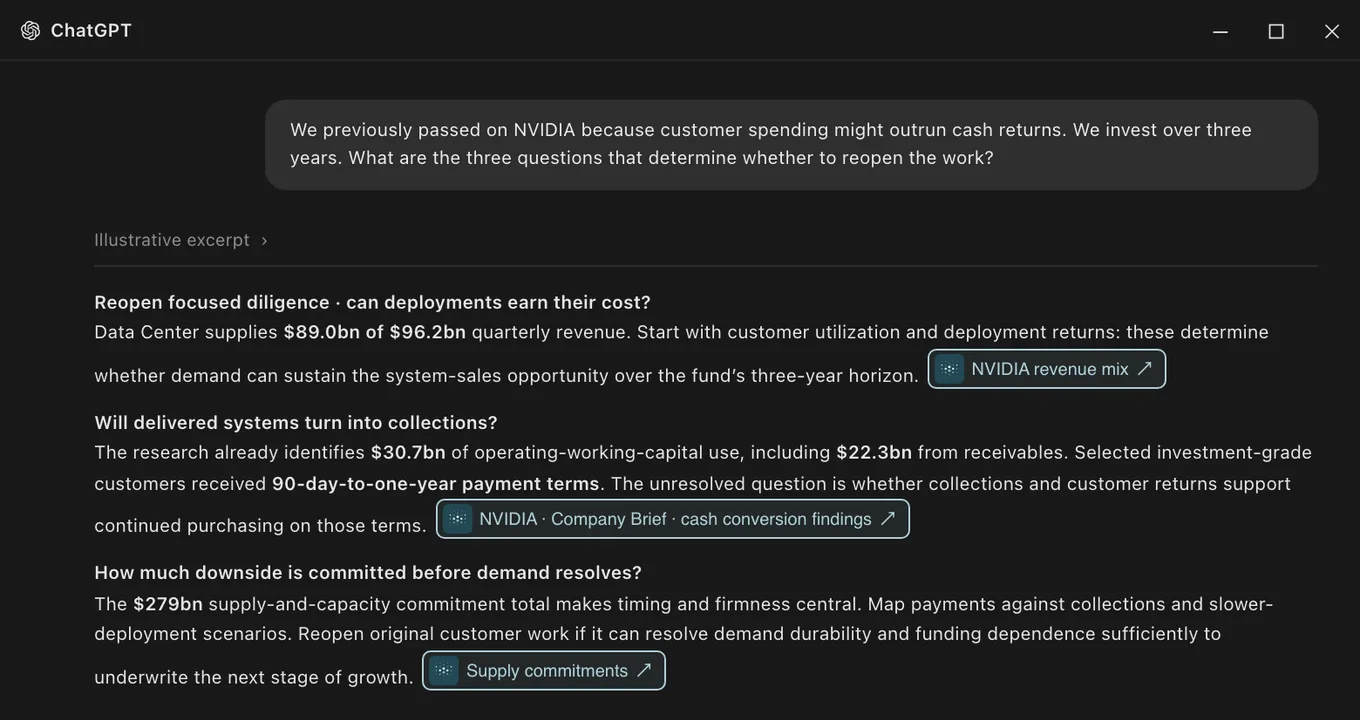
Before you start
- A work email with Wissen accessSign in with it. Adding the connector doesn’t grant research access by itself.
- Custom MCP apps allowedYour ChatGPT workspace must allow them. If you can’t add one, ask your admin.
Connect Wissen
Find Wissen in Plugins
ChatGPT, then Plugins
Already there from your firm? Install or connect it, then skip to step 3.
Open ChatGPT Plugins (opens in a new tab)Add Wissen as a custom MCP server
Add, then Add custom MCP server
If this control is unavailable, ask your workspace administrator to allow custom MCP connections.
Fill in the form- NameWissen
- DescriptionCompany research from Wissen
- Server URLhttps://argus.wissen-ai.com/mcp
- AuthenticationOAuth · leave as is
- Tick “I understand and want to continue”
- Choose Create as a plugin
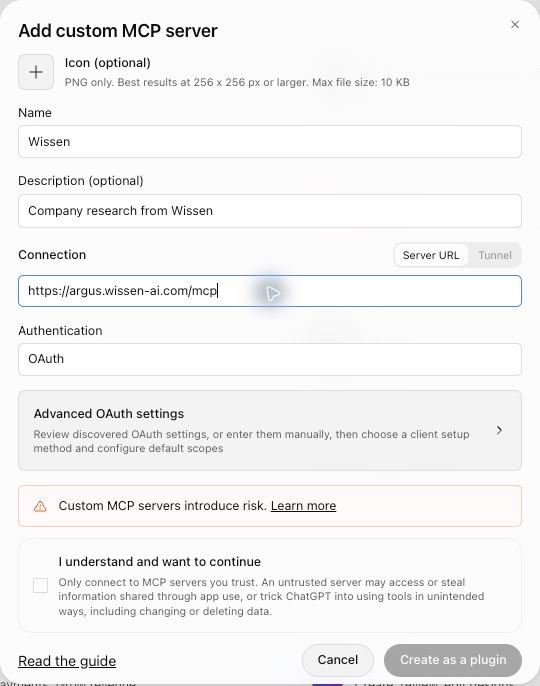
ChatGPT web · Add custom MCP server Sign in to Wissen
Choose Continue to Wissen, then sign in with the work email your firm has enabled.
Review the connection request and return to ChatGPT when it finishes. If prompted, install the personal plugin — your firm may provide it centrally instead.
Check it works
Start a new chat, select Wissen from the plugin controls or type @Wissen, then paste:
Connection checkUse the Wissen connector to call fetch_guide with guideId "getting-started" and show the first three workflow steps. Do not list equities or fetch company research. Reply in the chat only; do not edit any workbook, document, presentation, or other record. If the connection fails, report the error instead of guessing.You should see something like this
- Call
list_equitiesto find the companies available to the user. - Choose the research that best matches the question.
- Call the relevant
list_*tool to discover the available research.
A saved server address or an enabled toggle alone isn’t a passing check. Not seeing this? Go to If it doesn’t connect.
- Call
Use Wissen across your apps
Sign in to each app with the same ChatGPT account and workspace. You don’t need to add the server again.
- ChatGPT webReadySelect Wissen in a new conversation.
- ChatGPT / Codex desktopRestart the appSign in to the same account and workspace, quit and reopen the app, then select the Wissen plugin in a new session.
 ChatGPT for ExcelDepends on planInstall the add-in and sign in to the same account and workspace. Use Wissen if it appears among your connected apps.
 ChatGPT for WordLimitedThe add-in doesn’t support plugins yet. Check whether Wissen is available before relying on it.
A standalone Codex CLI or API-key session is a different setup path.
In Excel and Word, ask for Wissen by name
Select Wissen in the add-in’s connector controls and name it in your prompt. Otherwise a general research request may use the workbook, document or web without calling Wissen.
Use Wissen MCP to retrieve the latest company research for [company]. Summarize the findings and include the source links. If Wissen MCP is unavailable, tell me instead of substituting another source. Reply in the sidebar first; do not change the workbook or document yet.Check that the reply actually used a Wissen tool. Naming Wissen doesn’t enable a connector the add-in doesn’t have.
If it doesn’t connect
Wissen is missing in another app›
Check the account, workspace, plugin installation and your administrator’s app permissions. Restart the app or open a new conversation. Office support can differ from the web and desktop; check the app table above before adding another connection.
The name is already in use›
Reuse the existing production connection. If you need a distinct personal connection, name it Wissen research. Do not delete a shared app just to free its name.
I can connect, but research access is denied›
Check which email you used to sign in to Wissen. If it is correct, ask your firm’s Wissen administrator to check your access. Reinstalling the connector does not add access.
Sign-in does not finish›
Keep the sign-in tab open until the app confirms the connection. If the session expired or you chose the wrong account, reconnect from the provider’s connector settings. Never paste a password, access token, or browser callback URL into a chat.
OpenAI documentation
For the latest app controls and availability.